Description of export process
The end dialog is displayed when actively exiting the evaluation (user presses the Exit button or closes custo diagnostic). This behavior can be configured for some products in custo diagnostic.
If any export type (GDT, BDT, HL7, DICOM, Excel, etc.) is activated under Settings > Export, the option to export is offered in the end dialog. Here, the user can decide for themselves whether they want to export the evaluation or not.
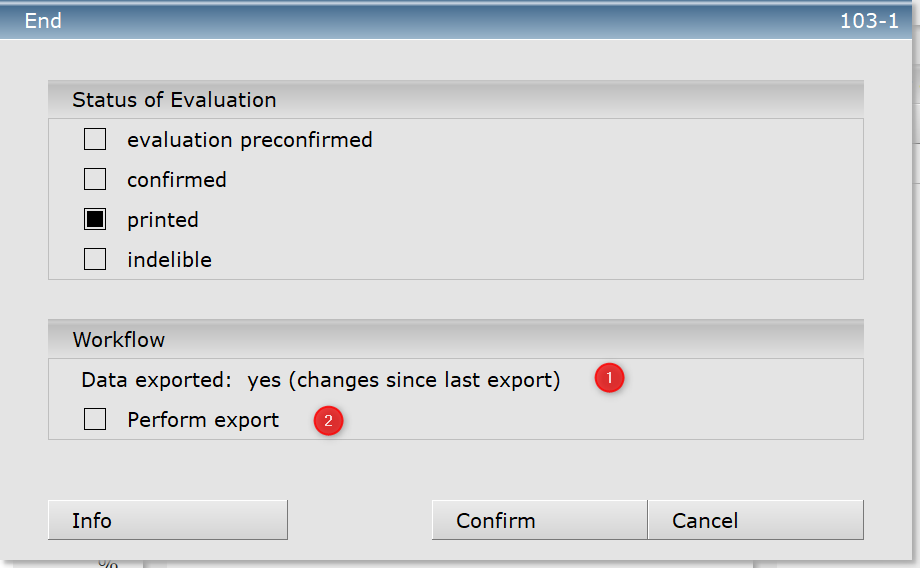
1: Export state of the evaluation
2: How to export an evaluation
Up to custo diagnostic 5.1.x, this setting could be used to determine in which situations the “Export” function should be activated in the end dialog.

Status and event-driven selection from custo diagnostic 5.2.x
Starting with custo diagnostic 5.2, the export function is set automatically by the system. The user can still activate/deactivate the export manually, but initially it is always set automatically by a logic. This is intended to relieve the user of the decision of when the export should take place, as in earlier versions this often led to the export being forgotten and to inconsistencies in the HIS and custo diagnostic.
Settings
The necessary settings can be found in the custo service center under the heading “Workflow” in “Export/Import.”
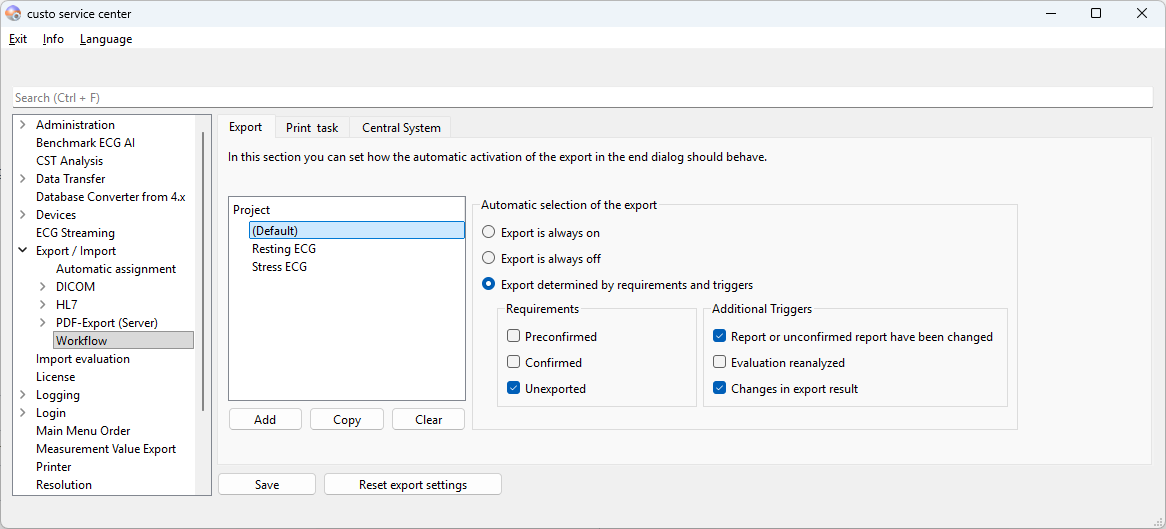
Here, you can configure separately for each product when exactly the export should be activated. All settings here are global, i.e., they apply to all users on all workstations for all export types. For external products, there is only one common setting, i.e., the automatic function always works identically for all external products.
There are two setting areas for deciding when the export should be activated automatically. These are:
- Requirements for export
- Triggers for an export
Requirements for export
Here you can select the requirements under which the export should take place. If the requirements for the export are not met, it will not be set automatically in the end dialog under any circumstances.
Possible selections for the export requirements are:
| Confirmed | Only evaluations with the status ‘Confirmed’ are exported. This is also the default setting. |
| Confirmed or Pre-Confirmed | Only evaluations with the status ‘Confirmed’ or ‘Pre-Confirmed’ are exported. |
| Unexported | Only evaluations that have not yet been exported are exported. |
| No option set | No checks are performed for the export requirements. All evaluations are always exported. (Corresponds to the “Always export evaluations” setting from earlier versions.) |
Default setting: 'Confirmed'
Triggers for export
The settings for the export trigger are combinable triggers that are additionally checked when the export condition is met. If these apply since the last export, they would trigger the export process.
Possible export triggers are:
| Report or unconfirmed report have been changed | If a report or preliminary report is confirmed in the reports dialog, then it should be exported. This also applies if nothing has changed in the reports text, but “Confirm” was clicked in the reports dialog (see reports history). |
| Evaluation reanalyzed | If a new analysis of the evaluation has taken place, then the export should be triggered. |
| Changes in export results | If something in the evaluation has changed that affects the export results (e.g., changed printout, changed events, etc.), then the export should be triggered. |
Default: 'Report or unconfirmed report have been changed' und 'Changes in export results'
The specific export triggers can be configured on a project-by-project basis. If no export trigger is activated, then only the export condition is checked when deciding whether to export or not, nothing else.
This technique of export conditions and export triggers can be used to automate common workflows in a hospital for export. Common export configurations could be, for example:
| Situation | Einstellung |
|---|---|
Only export evaluations that have been reported. Especially if the content of the report has been changed. | Requirements for export: 'Confirmed' |
| Always export when something has changed in the report. | Requirements for export: No option set |
| Export only once, after the report have been created. | Requirements for export: 'Unexported' |
| Always export. | Requirements for export: No option set Exportauslöser: No option set |
| Only export when leaving the evaluation for the first time. | Requirements for export: 'Unexported' |
How it works
When the end dialog is called up, the program automatically checks whether:
- A Requirement for export applies
- One of the export triggers applies since the last export (or creation of the evaluation, if not yet exported).
Only if both conditions are met is the export function automatically activated in the end dialog.
This also applies if the user manually changes the current status (Confirmed or Pre-confirmed) of the evaluation in the end dialog. In this case, the automatic function is also triggered and the export process is updated again.
Various analyses are performed internally for the export trigger. These are:
| Pre-Confirmed report or report have been confirmed | The report history (see report dialog) is checked to see whether a new entry for a confirmed report has been added since the last export (or since the evaluation was created, if no export has yet been performed). |
| Auswertung neu analysiert | The evaluation history (see Evaluation Info dialog in the context menu) is checked to see whether the entry has been analyzed or reanalyzed since the last export (or creation of the evaluation, if no export has yet been performed). |