To easily provide a comfortable possibility to the custo diagnostic client terminal server solutions like Windows Terminal Server or Citrix can be used. The usage should however be limited to non recording use cases like the viewing, processing and reporting of evaluations. Due to the reduced real-time capability of terminal server solutions, such a workstation cannot be used as a recording station.
The custo diagnostic client software expects its configuration file "CustoCfg.ini" in the root directory of its program (by default C:\Program Files (x86)\custo diagnostic client). One thing is mandatory to be defined there: The URL of the custo diagnostic server where the client settings should be load from the data base of the server.
There are 2 useful options on a Terminal server installation:
In this case the CustoCfg.ini should look like this:
[DiagServer]
Url=http://[DNS name]:[Port]/diag
[Start]
WsName=WhateverNameYouLikeThatNotReallyExists (*1)
Example:
[DiagServer]
Url=http://ServerComputer.domain.internal:18080/diag
[Start]
WsName=SOMENAME (*1)
In this case the CustoCfg.ini should look like this:
[DiagServer]
Url=http://[DNS name]:[Port]/diag
[Start]
WsName=%CLIENTNAME%
Example:
[DiagServer]
Url=http://ServerComputer.domain.internal:18080/diag
[Start]
WsName=%CLIENTNAME%
You may find more information about the parameters used in CustoCfg.ini file also here: https://www.customed.de/docs/x/EID0B
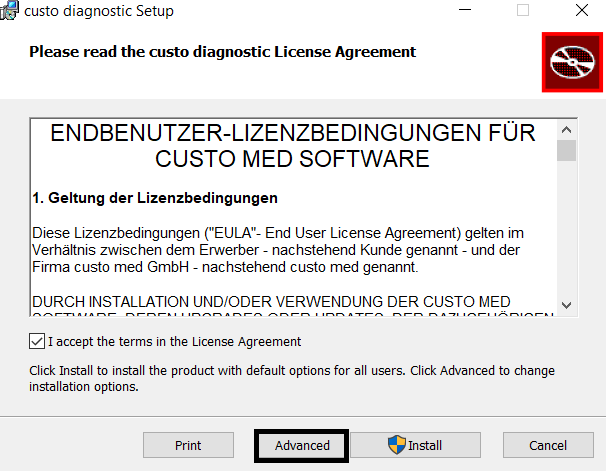
Best use the MSI package of the relevant custo diagnostic client version to install it on your terminal server(s). Before running the setup put the previously configured CustoCfg.ini file in the same directory as the MSI package to distribute it directly to the program files directory of the custo diagnostic client software.
For mass distributions via software distributions or silent installations you may configure also the MSI execution - see https://www.customed.de/docs/x/BgCCAQ
In the manual setup use this way to deselect the driver installation, which is not needed as the terminal servers should not be used to connect devices.
Install it on a local path you prefer - best use the default. The application is a 64-Bit program though the path indicates a 32-Bit program folder This is for compatibility reasons with 3rd party software.
You will not need any drivers - the creation of a short cut desk top icon is a question of own preferences - you may as well create the relevant icons afterwards.
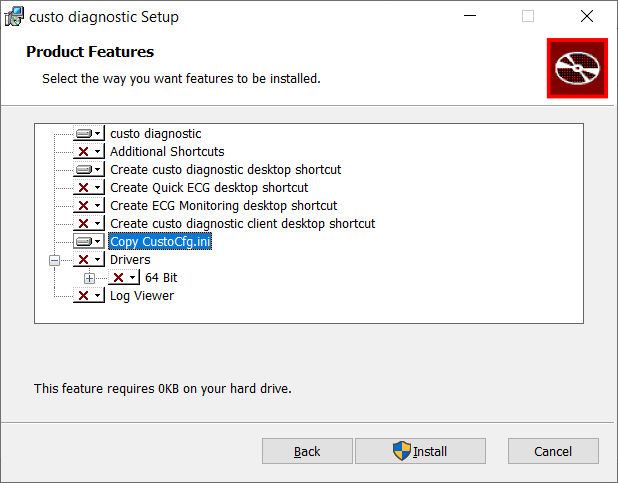
Run the installer.
The client setup installs also a service which is used to automatically update the clients from the custo diagnostic server. On a Windows Terminal server this makes no sense: So therefore best set the "custo diagnostic updater service" to disabled and stop it.
User settings: If you have decided to use a fixed server config setup like in a) please go to the service center and disable in "Administration - Users" common rights like "change system settings", "administration of work list" and exam specific rights like "Change settings". Otherwise users might unexpectedly change settings.
In Citrix create a published application. If you want to create a public application for the custo manager (custo manager.exe) locate it in the Exe sub directory of the setup path you have chosen. The same applies for the custo diagnostic client (custodiagnosticclient.exe). Provide access for a test group of persons and check if it works.
Notes
*1) Please find here the Computer Name conventions:
https://learn.microsoft.com/en-us/troubleshoot/windows-server/active-directory/naming-conventions-for-computer-domain-site-ou